
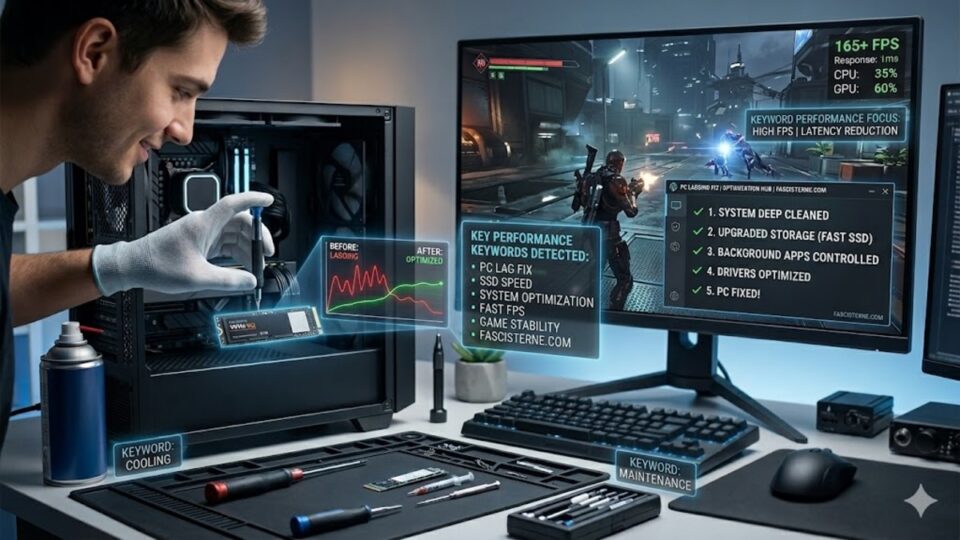
PC Lagging Fix – I’m Not Even Joking, It Always Happens at the Worst Time
You ever notice this?
Your PC works fine for weeks… maybe months.
Then suddenly — it starts lagging.
Tabs take forever to open, apps freeze, and even simple stuff feels slow.
If you’re here looking for a pc lagging fix, yeah… I already know you’re tired of it.
And honestly? Same.
In my experience, it’s rarely one big problem. It’s usually small things piling up quietly in the background.
Why Your PC Starts Lagging (Even If It’s Not Old)
People think lag = old computer.
Not always true.
Sometimes it’s just:
- Too many startup programs
- Background apps running non-stop
- Low storage space
- Temporary files building up
- Outdated system or drivers
Individually, they’re small.
Together? Your PC slows down like crazy.
PC Lagging Fix – What I Actually Do (Nothing Complicated)
I’m not going to throw technical stuff at you.
Just real fixes that actually help.
1. First Thing – Restart Your PC (Yes, Really)
Sounds basic, but…
Most people don’t restart for days.
Or weeks.
A simple restart:
- Clears temporary memory
- Stops background processes
Honestly, sometimes this alone fixes lag.
2. Disable Startup Programs (Big Difference)
This one is huge.
When your PC starts, a bunch of apps open automatically.
You don’t even notice them.
So I:
- Open Task Manager
- Go to Startup tab
- Disable unnecessary apps
Instant improvement.
3. Clear Temporary Files (Hidden Junk)
Your system keeps collecting useless files.
And yeah… they slow things down.
So I:
- Search “Disk Cleanup”
- Delete temp files
Feels like cleaning out digital trash.
4. Close Background Apps You’re Not Using
Ever checked how many apps are running?
It’s a lot.
Even when you think nothing’s open.
So:
- Close unused apps
- End heavy tasks from Task Manager
Your PC breathes again.
5. Free Up Storage Space
This matters more than people think.
If your drive is almost full:
- System slows down
- Apps lag
- Updates fail
So:
- Delete large files
- Remove old downloads
- Uninstall unused programs
Try to keep at least 20% space free.
PC Lagging Fix – Quick Breakdown
| Fix | Impact | Effort |
|---|---|---|
| Restart PC | Medium | Very Easy |
| Disable startup apps | High | Easy |
| Clear temp files | High | Easy |
| Close background apps | Medium | Easy |
| Free storage | Very High | Easy |
Small Habits That Actually Keep Your PC Fast
This is what works long term.
- Restart your PC regularly
- Don’t install random software
- Clean storage once a week
- Keep system updated
Nothing fancy… just consistent.
Things That Secretly Slow Down Your PC
You might not notice these:
- Too many browser tabs
- Extensions you don’t need
- Antivirus scans running constantly
- Apps running in background after closing
Yeah… they add up.
PC Lagging Fix – Mistakes People Make
I’ve seen this a lot.
- Installing “PC booster” apps (some make it worse)
- Ignoring updates
- Keeping everything installed “just in case”
- Never cleaning storage
I’ve done some of these too… learned the hard way.
When You Should Consider a Bigger Fix
If your PC is still lagging after everything:
- System freezes often
- Apps crash regularly
- Boot time is very slow
Then maybe:
- Upgrade RAM
- Switch to SSD (huge difference)
- Or reset Windows
But yeah… try simple fixes first.
PC Lagging Fix – Real Talk
Here’s the truth.
Your PC usually isn’t “broken”.
It’s just… overloaded.
Too many small things running, too much junk stored.
Once you clean it up?
It honestly feels like a new machine.
Conclusion – Keep It Simple, Don’t Overthink It
If you’re dealing with a pc lagging fix situation, don’t stress.
You don’t need to be a tech expert.
Just:
- Clean things up
- Remove what you don’t need
- Restart once in a while
In my experience… that’s enough to fix most problems.
FAQs
1. Why is my PC suddenly lagging?
Usually due to background apps, low storage, or startup programs.
2. Does restarting really help?
Yes. It clears temporary memory and improves performance.
3. How much free space should I keep?
At least 15–20% for smooth performance.
4. Should I install PC cleaner apps?
Not always. Some can slow your system instead.
5. What upgrade helps the most?
Switching to an SSD makes a huge difference.
