
Autocorrect is supposed to help you type faster, but sometimes it changes a perfectly good word into something completely different — right before you hit send. If you are tired of fixing your own messages, learning how to turn off autocorrect on iPhone takes less than a minute, and you can always turn it back on later. This guide walks you through the exact steps, plus a few related fixes for iPad, Android, and Samsung phones.
What Autocorrect Does on Your iPhone
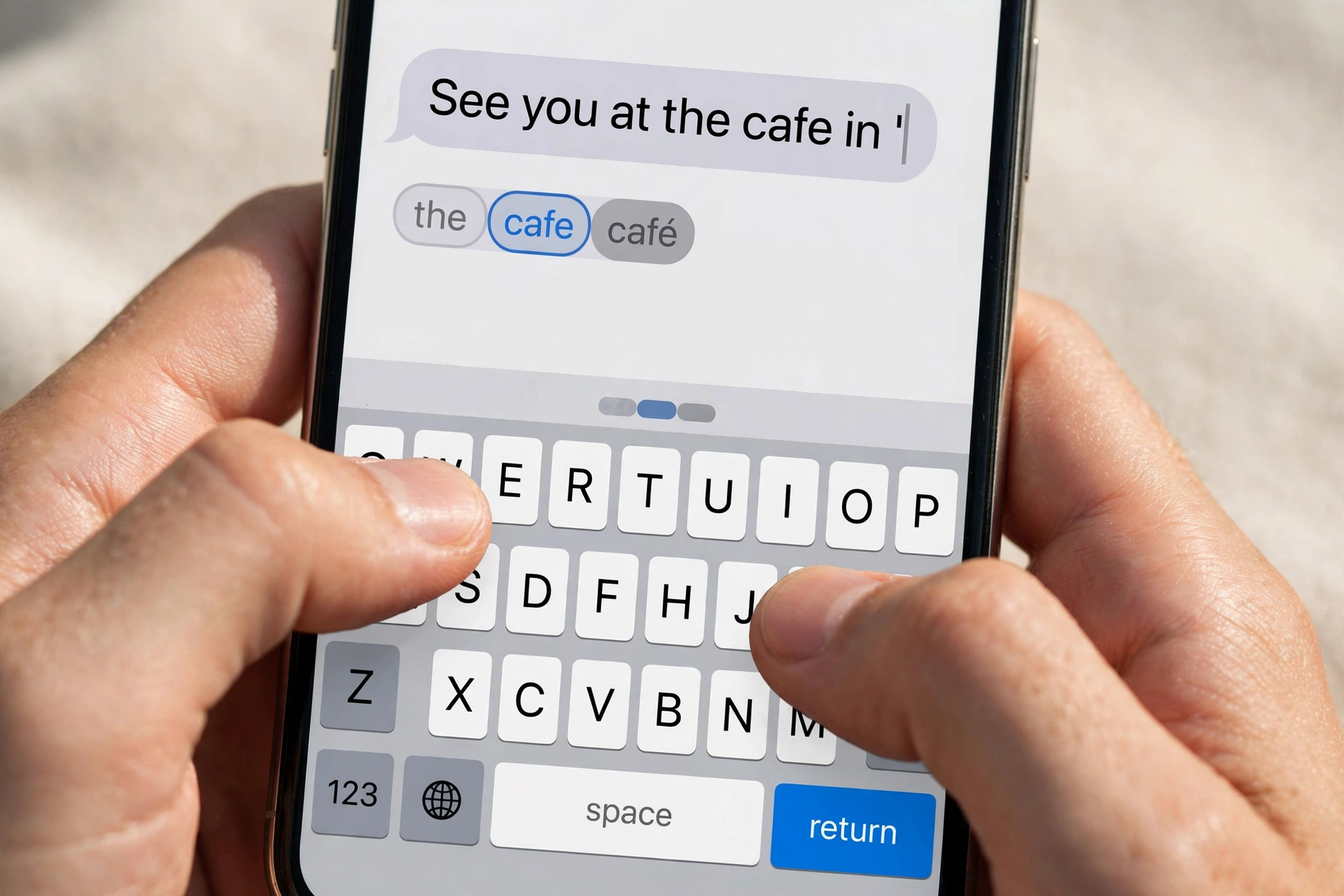
Autocorrect is a keyboard feature that watches what you type and replaces words it thinks are misspelled. It learns from your typing habits over time, which is why it usually gets common words right — and why it sometimes insists on changing names, slang, or words from another language into something you never meant to write.
The feature is switched on by default on every iPhone. It works in almost every app that uses the keyboard, from Messages and WhatsApp to Mail and Notes, because the setting lives in the system keyboard, not in each app. That is good news: one switch turns it off everywhere at once.
How to Turn Off Autocorrect on iPhone
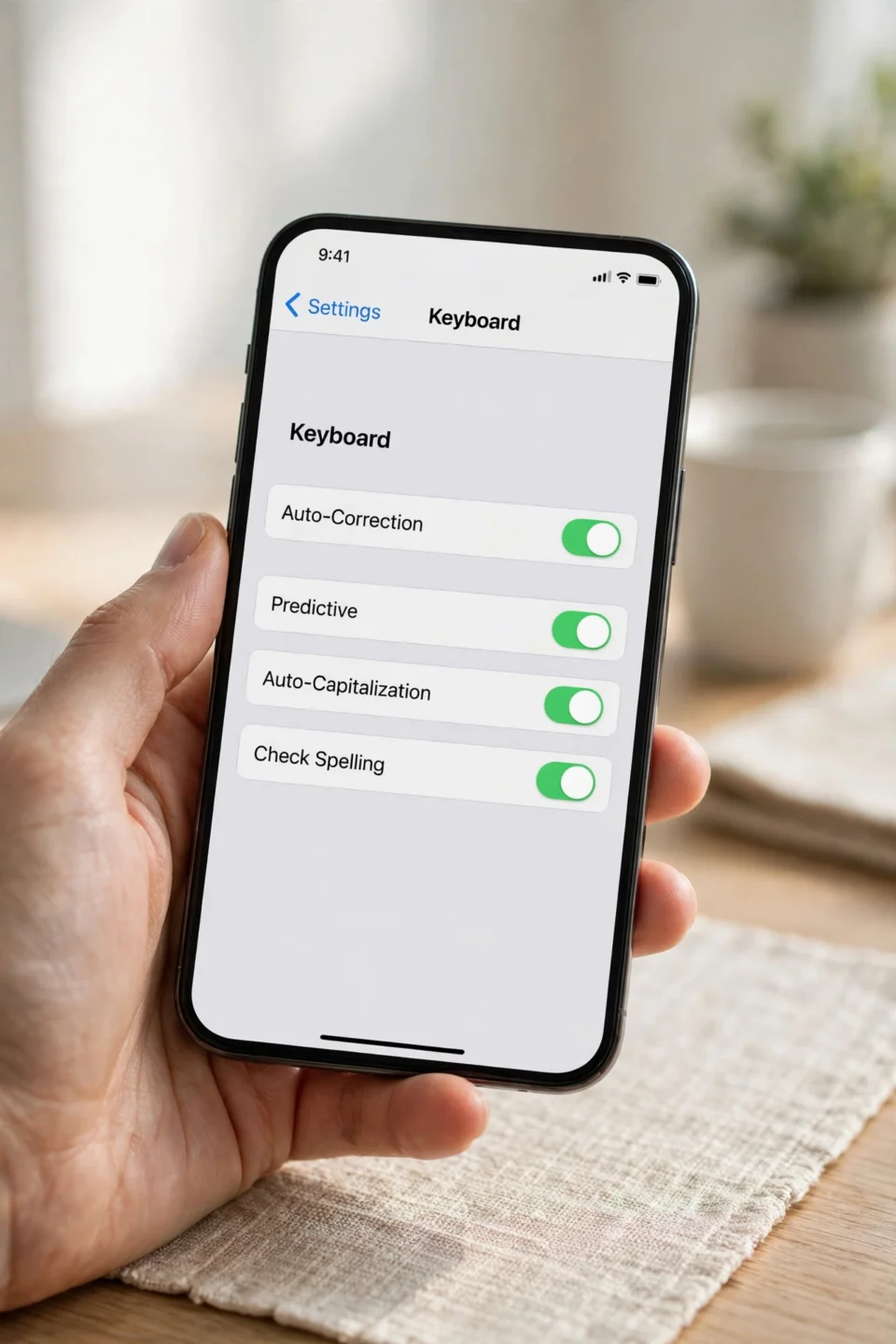
Here is the quickest way to switch it off:
- Open the Settings app on your iPhone.
- Tap General.
- Tap Keyboard.
- Find Auto-Correction near the top of the list.
- Tap the green switch next to it so it turns grey (off).
That is all it takes. From now on, your iPhone will type exactly what you type — mistakes included. Test it by opening Messages and typing a word you know autocorrect used to change. It should stay exactly as you typed it.
The steps are the same on every recent iPhone model, from older models to the latest ones, because the setting has sat in the same place for years. The menu names can look slightly different on very old versions of iOS, but Settings, then General, then Keyboard is the path to remember.
How to Stop Autocorrect on iPhone Without Losing Spell Check
Turning off autocorrect does not have to mean giving up all typing help. If you still want your iPhone to underline mistakes without changing them for you, here is how to stop autocorrect on iPhone while keeping spell check:
- Go to Settings, then General, then Keyboard, as above.
- Turn Auto-Correction off.
- Leave Check Spelling switched on.
With this setup, misspelled words get a red underline, but nothing is replaced automatically. You stay in control: tap an underlined word to see suggestions, or ignore it and keep typing. This is the best middle ground if you type in more than one language or use a lot of names and slang that autocorrect keeps “fixing.”
You can also turn off Predictive on the same screen. Predictive text is the row of suggested words that appears above the keyboard as you type. Switching it off removes those suggestions and gives you a little more screen space.
How to Turn Off Autocorrect on iPad
If you also use an iPad, the good news is that the process is identical. Here is how to turn off autocorrect on iPad:
- Open Settings on your iPad.
- Tap General, then Keyboard.
- Switch Auto-Correction off.
iPadOS shares the same keyboard settings as iOS, so the toggle sits in the same place. Keep in mind that the iPhone and iPad settings are separate: turning autocorrect off on your iPhone does not change anything on your iPad, and the other way round. If you use both devices, repeat the steps on each one.
The same is true for the floating keyboard and the split keyboard on iPad — both follow the system setting, so there is nothing extra to change.
How to Turn Off Autocorrect on Android
Many households have both iPhones and Android phones, so here is the Android version too. The exact menu names can vary a little between phone makers, but the general path is the same. Here is how to turn off autocorrect on Android when you use Gboard, the keyboard most Android phones ship with:
- Open Settings on your Android phone.
- Tap System, then Languages and input.
- Tap On-screen keyboard, then Gboard.
- Tap Text correction.
- Turn Auto-correction off.
If your phone uses a different keyboard, look for a similar Text correction or Smart typing menu inside that keyboard’s own settings. The switch is usually labelled Auto-correction, Auto replace, or Auto-capitalisation, and it works the same way.
How to Turn Off Autocorrect on Samsung
Samsung phones use their own Samsung Keyboard by default, so the steps are a little different. Here is how to turn off autocorrect on Samsung phones:
- Open Settings on your Samsung phone.
- Tap General management.
- Tap Samsung Keyboard settings (or Keyboard list and default, then Samsung Keyboard).
- Find Auto replace and switch it off.
On some Samsung models the option is called Predictive text instead — switching that off stops the keyboard suggesting and replacing words. Either way, the change takes effect straight away in every app. Like the iPhone, your Samsung keeps spell check separate, so you can leave that on if you still want mistakes underlined.
What to Do If Autocorrect Keeps Changing Words
Sometimes autocorrect keeps changing a particular word even after you have tried to teach it otherwise. That usually happens because the keyboard has learned the wrong version of the word. Two fixes help:
Reset the keyboard dictionary. Go to Settings, then General, then Transfer or Reset iPhone, then Reset, then Reset Keyboard Dictionary. This erases everything the keyboard has learned, including wrong corrections, and gives you a fresh start. You will need to enter your passcode, and the keyboard will have to relearn your typing habits from scratch.
Use Text Replacement for words that matter. If autocorrect keeps changing a name or a technical word, add it yourself. Go to Settings, then General, then Keyboard, then Text Replacement, tap the plus button, and add the word as both the phrase and the shortcut. Your iPhone will then leave that word alone.
These two tricks are also handy if you share your phone with family or if several people type on the same device, since the keyboard dictionary is shared across the whole phone.
How to Turn Autocorrect Back On
Changed your mind? Turning it back on is just as quick. Go to Settings, then General, then Keyboard, and switch Auto-Correction back on. Your old keyboard dictionary is still there, unless you reset it, so the keyboard picks up where it left off.
Some people turn autocorrect off only while writing in another language or typing a lot of slang, then switch it back on for everyday messages. Because the toggle is only a few taps away, you can treat it as a setting you adjust whenever you need to, not a permanent decision.
Keep Your iPhone Typing the Way You Want
A phone keyboard should help you say what you mean, not rewrite it. Whether you switch autocorrect off completely, keep spell check on its own, or use text replacement for a few stubborn words, the controls are all in the same Keyboard settings screen. And if your iPhone feels slow or crowded while you are in Settings anyway, it is worth freeing up space on your phone as well — old photos, unused apps, and cached files are often the real reason a phone feels sluggish.
Frequently Asked Questions
Does turning off autocorrect on iPhone affect all apps?
Yes. The Auto-Correction switch is a system setting, so it applies to every app that uses the Apple keyboard, including Messages, WhatsApp, Mail, and Notes. Third-party keyboards have their own settings, so you would need to change those separately inside the keyboard app.
Will turning off autocorrect delete my keyboard dictionary?
No. Turning the switch off only stops automatic corrections. Your keyboard dictionary stays saved, so if you turn autocorrect back on later, the words it learned are still there. Only the Reset Keyboard Dictionary option erases what it has learned.
Why does my iPhone still change words after I turn autocorrect off?
Check that you changed the setting for the right keyboard. If you use a third-party keyboard, the Apple setting does not apply to it. Also check that Predictive text is off too, since tapping a suggested word can still replace what you typed.
Can I turn off autocorrect for one app only?
Not with the built-in Apple keyboard — the setting is system-wide. If you need autocorrect off in one app and on everywhere else, a third-party keyboard app with per-app settings is the usual workaround.
Conclusion
Knowing how to turn off autocorrect on iPhone is a small fix that removes a daily annoyance. Open Settings, go to General, then Keyboard, and switch Auto-Correction off — that is the whole job. Keep spell check switched on if you still want mistakes underlined, reset the keyboard dictionary if a wrong correction keeps coming back, and use the same steps on your iPad whenever you need to. The setting takes seconds to change and seconds to undo, so try typing without autocorrect for a few days and see if your messages finally say what you meant.
