
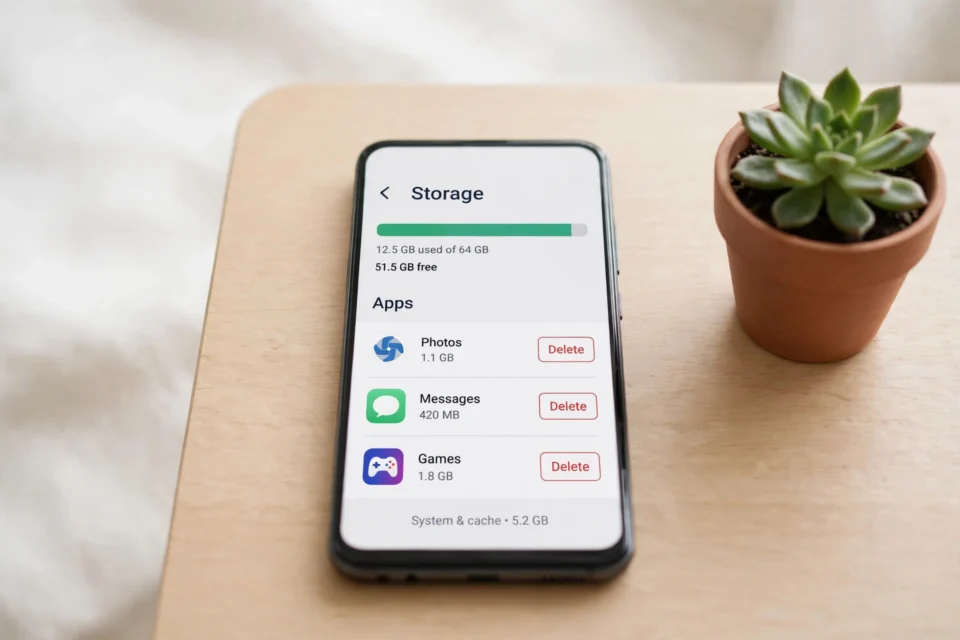
If you want to know how to free up space on your phone, you are not alone. Almost every phone owner eventually sees the same warning: storage almost full. Photos, videos, apps and cached files quietly pile up until there is no room left for a new photo, a software update or even a simple message attachment. The good news is that you can usually recover several gigabytes in under half an hour, without deleting anything you actually need. This guide walks through the safest steps first, so you can free up space on your phone and keep it free.
1. Check What Is Actually Using Your Storage
Before deleting anything, look at the breakdown. On Android, open Settings, then Storage, and you will see how much space apps, photos, videos, audio and system files are using. On an iPhone, open Settings, then General, then iPhone Storage, where apps are listed from largest to smallest. This list tells you where the real problem is. In most cases, a handful of apps and a large photo library are responsible for most of the used space, and that is where your effort should go.
2. Clear Cached Data From Your Apps
Cached data is one of the easiest wins when you need to free up space on your phone. Apps store temporary files so they load faster, but that cache can grow to hundreds of megabytes per app, especially in browsers, social media apps and streaming apps. On Android, go to Settings, then Apps, pick an app, then Storage, and tap Clear cache. This removes temporary files only, and it does not delete your logins, messages or saved content. On an iPhone, there is no single clear-cache button, but you can offload an app or delete and reinstall it to clear its cache. Avoid tapping “Clear storage” or “Clear data” unless you are happy to sign in again and lose the app’s saved settings.
3. Delete Apps You Never Use
Most of us carry apps we opened once and forgot. Sort your apps by size or by last used date and remove the ones you have not opened in months. Games are often the biggest offenders, with some taking up several gigabytes each. If you are not ready to delete an app completely, use the offload option on iPhone or the archive option on newer Android phones: it removes the app itself but keeps your data, so you can reinstall it later exactly as you left it.
4. Back Up Your Photos and Videos, Then Remove the Originals
Photos and videos are usually the largest single category on a phone. Back them up to a cloud service such as Google Photos, iCloud or OneDrive, wait until the backup is confirmed complete, and then use the service’s “free up space” option to remove the device copies. A short video recorded in 4K can take up hundreds of megabytes, so moving even a few dozen clips to the cloud can recover a surprising amount of room. Check your camera settings too: recording in 1080p instead of 4K, and turning off the option that keeps both the original and edited version of every photo, will slow future storage growth.
5. Delete Downloads and Duplicate Files
Open your Downloads folder and your file manager and look for installers, PDFs, old attachments and videos you have already watched. These files are easy to forget and easy to remove. Duplicate photos are another common waste of space: burst shots, accidental screenshots and near-identical pictures add up quickly. Many phones now have a built-in tool that finds duplicates for you, and freeing up space on your phone often starts with deleting the ten extra versions of the same photo.
6. Use Your Phone’s Built-In Storage Tools
Both Android and iPhone now include storage helpers that do much of this work for you. Android’s Files app suggests large files, unused apps and duplicate photos to delete, while iPhone Storage offers recommendations such as offloading unused apps and reviewing large attachments. Run these recommendations once a month. A quick restart afterwards also helps, because it clears temporary system files and lets the phone recalculate its storage properly.
7. Move Big Files Off the Phone
If your phone supports a memory card, move photos, videos and music to it. If it does not, move large files to a computer or an external drive when you get the chance. Streaming music and video instead of downloading them also helps: downloaded playlists, podcasts and offline videos can quietly take up gigabytes. Keep only the downloads you actually use offline and let the rest stream.
8. What Not to Delete
Not everything is safe to remove. Never delete system files, the Android or iOS system folders, or files inside an app’s data folder unless you know exactly what they are. Do not delete a photo or video until you have confirmed the backup is complete, and do not clear an app’s data for banking, messaging or two-factor authentication apps unless you are sure you can sign in again. When in doubt, leave the file alone and move on to the next step. A phone that keeps working is worth more than an extra gigabyte.
Conclusion
Learning how to free up space on your phone is mostly a matter of regular small habits: check the storage breakdown, clear app cache, remove apps and files you no longer need, and keep your photos backed up. Do it once properly and then repeat the quick version once a month, and the “storage full” warning should stop appearing. Your phone will also feel faster, updates will install without a struggle, and you will always have room for the photo that matters. If your phone also struggles with battery life, read our guide on why your phone battery drains fast for simple fixes that go hand in hand with a tidy, well-maintained phone.
